Time Clocks
The Time Clocks report gives managers a live view of which technicians are clocked in right now, what they're working on, how long they've been on the clock, and lets a manager clock someone out who forgot.
Before you start
Only employees with permission to manage tickets can see Time Clocks.
Technicians clock in and out from the services on a ticket. Each service has a Clock In button (clock icon) next to its tools.

Open the Time Clocks report
Click Reports in the left menu.
Under Labor, click Time Clocks.
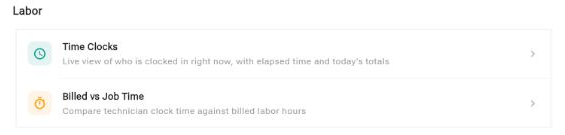
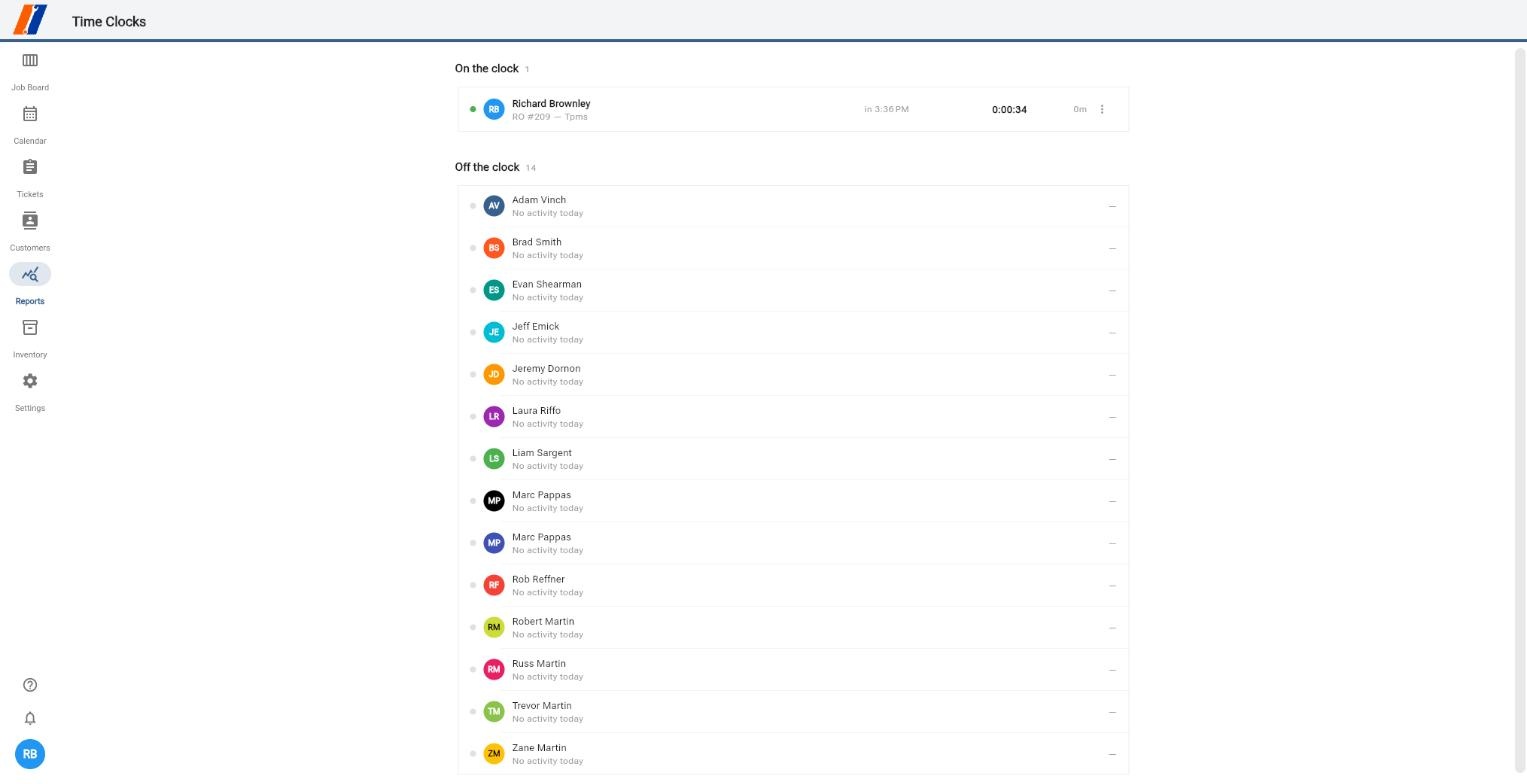
The report shows two lists:
On the clock — everyone currently clocked in, with a count
Off the clock — everyone else, with what they did today
Read a running clock
Each row under On the clock shows:
The technician's name, and the RO # and service they're clocked in on
The time they clocked in
A live elapsed timer
Their total time today

A clock is flagged with a warning when it:
has been running longer than your shop's limit (see Set the "forgotten clock" limit below), or
has gone past the billed hours on that service.
Clock someone out
Use this when a technician forgot to clock out, for example at lunch or the end of the day.
Under On the clock, click the ⋮ menu on the technician's row and choose Clock out…

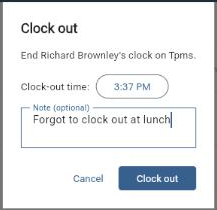
In the Clock out dialog, check the Clock-out time. Click the time to change it to when they actually stopped working.
Optionally add a Note explaining the change (for example, "Forgot to clock out at lunch").
Click Clock out.
The technician moves to Off the clock, showing when they clocked out and on which RO.

Set the "forgotten clock" limit
Go to Settings › Preferences.
In the Time Clocks card, choose how long a clock can run before it's flagged in Flag clocks running longer than (4 to 24 hours; 8 hours by default).
Click Save.

Tips
Check Time Clocks before closing up to catch anyone still on the clock.
Adjusting the clock-out time keeps your Billed vs Job Time report accurate.
Notes typed when clocking out can print on invoices if Show technician notes is turned on in Invoice & Estimate Templates — keep them customer-friendly.
Troubleshooting
I don't see Time Clocks under Reports. Your role doesn't include permission to manage tickets. Ask an admin to update your role in Settings › Roles & Permissions.
A technician is missing from the list. Make sure the right location is selected and that the employee is active in Settings › Employees.
Related articles
Reports
Creating & Managing Tickets
Invoice & Estimate Templates